
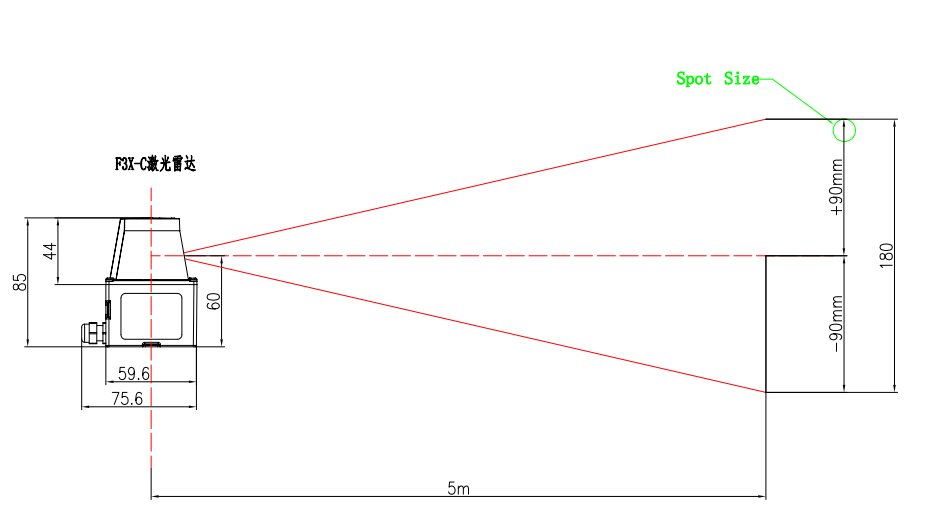
1. Does the laser spot size of the radar change?
Yes, the laser spot size is not fixed. It increases with distance: for every 1 meter of distance, the spot diameter can expand by up to 18 mm.
2. How do I choose the right mounting bracket for the LiDAR (laser radar)?
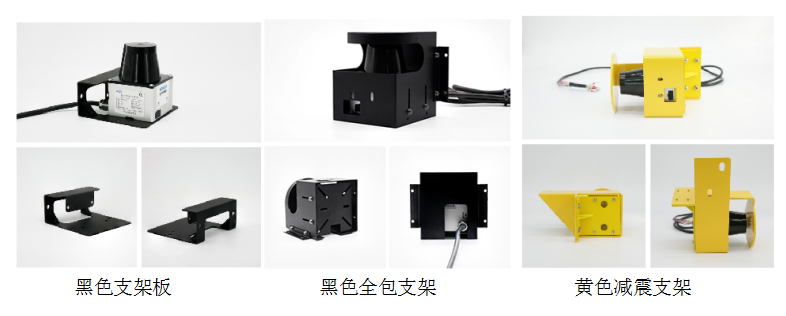
We offer three dedicated bracket types—select based on your on-site conditions:
Black standard bracket
Black full-cover bracket (suitable for environments with low vibration)
Vibration-dampening bracket (recommended for high-vibration environments)
3. How effective is the vibration-dampening bracket at shock absorption?
The vibration-dampening bracket provides basic anti-vibration performance. However, its actual effectiveness depends on the specific operating conditions of your equipment. If the machine generates excessive vibration, performance may vary accordingly.
4. Are there any wiring requirements?
Yes:
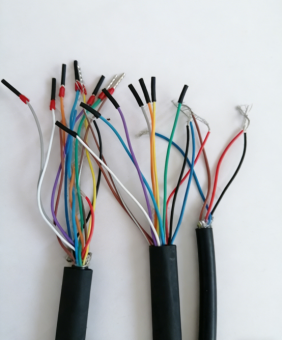
Wire strictly according to the provided wiring diagram (note: power supply must be DC 24V).
Insulate all unused wires individually (e.g., with tape or caps) to prevent accidental contact that could trigger unintended functions.
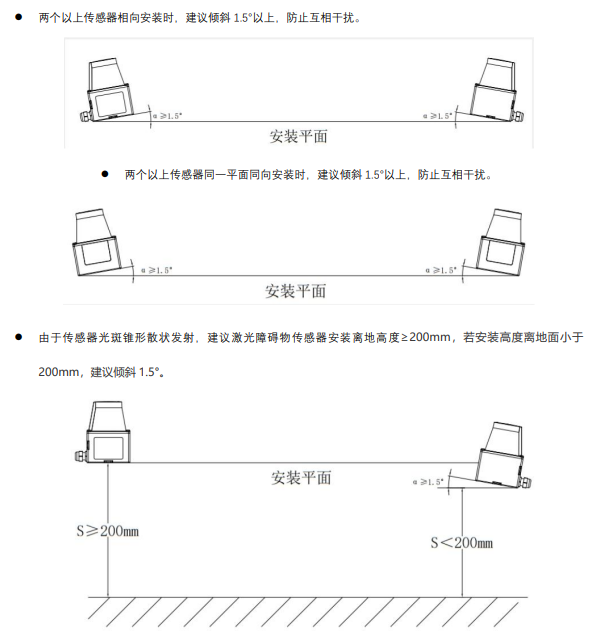
5. Product Installation Method
(Note: The original text only provides the heading without content. Translation reflects the heading only.)
6. What are the requirements for the data cable?
The Type-C data cable must support data transmission (not just charging). We recommend using branded cables from Xiaomi or Huawei.
7. Are the scanning distance and angle adjustable?
Yes—both the scanning distance and angle can be flexibly adjusted. Using our dedicated configuration software, you can customize these parameters according to your specific on-site requirements.
8. Is wiring and commissioning simple?
Yes, both wiring and commissioning are straightforward. We provide detailed wiring diagrams and step-by-step commissioning guides. If you find the process challenging, we also offer professional remote assistance and will support you throughout until successful commissioning is completed.
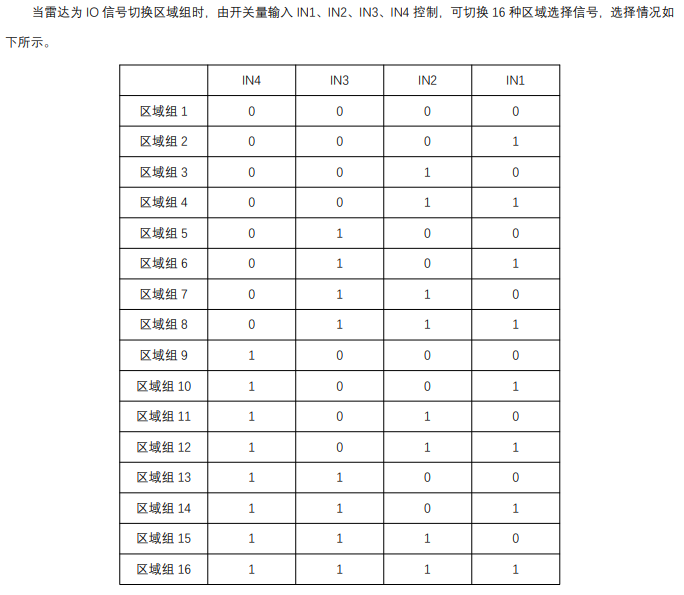
9. How to switch between zone groups?
Connect COM to 0V, and IN to 24V.
The zone group switches based on whether the IN terminal is energized (24V) or de-energized (0V).
Important wiring rule:
If COM is connected to 0V, then the IN signal line must be connected to 24V to trigger switching.
Conversely, if COM is connected to 24V, then the IN signal line must be connected to 0V.
For clarity, please refer to the diagram provided in the original documentation.
10. Radar Connection Display Issue
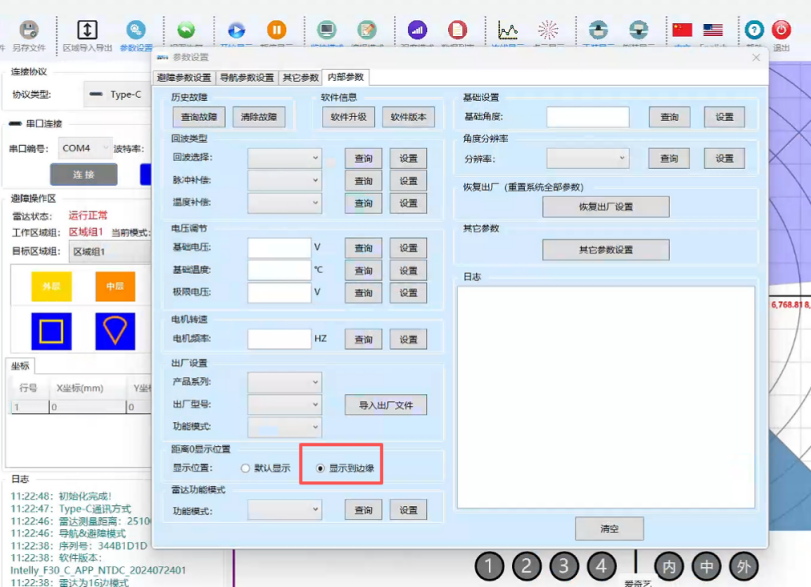
The radar connection interface shows an obstacle ahead, but the point cloud displays no obstacle—and there is indeed no physical obstruction on site. The radar has not triggered an alarm.
→ Press Esc + Ctrl + Delete to enter the internal configuration page.
11. How to Set the Maximum Detection Distance?
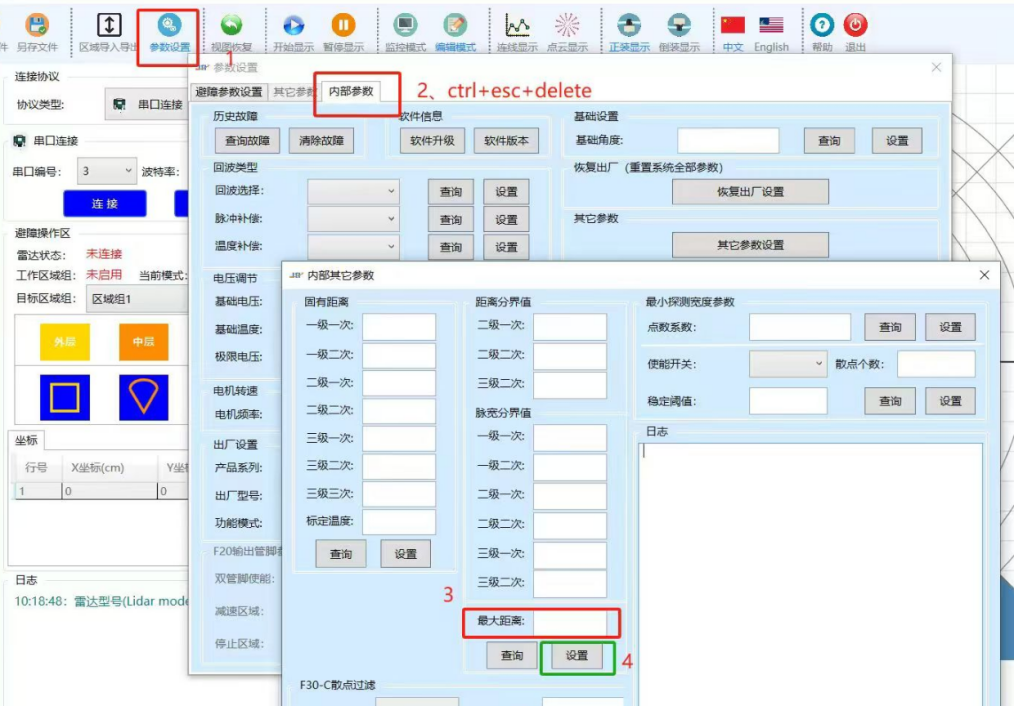
Press Esc + Ctrl + Delete to enter the internal configuration page, where you can set the maximum detection distance.
12. Port Cannot Be Selected or Connection Fails During Debugging – How to Resolve?
Open the Device Manager on your computer and check whether the radar’s communication port is properly recognized by the system.
13. Failed to Retrieve Software Version During Debugging – What to Do?
Try the following steps in order:
Replug the data cable,
Restart the radar device,
Restart the debugging software.
14. Abnormal Radar Signal Output – How to Troubleshoot?
Check whether the cable has been extended. If it has, disconnect the extension and directly measure the signal at the radar-end cable to verify integrity.
15. How to Diagnose False Alarms?
Inspect the surface: Check for dust, dirt, or other obstructions covering the radar window.
Adjust parameters: If the surface is clean, try increasing the resolution slightly to improve reliability.
16. Can It Be Used in Harsh Weather Conditions?
Heavy rain, dense fog, or high dust levels can attenuate or block laser transmission, reducing penetration and potentially causing:
Reduced detection range,
False alarms, or
Missed detections.
Recommendations:
Install a protective hood that is rain-, dust-, and fog-resistant.
Appropriately adjust detection width and sensitivity based on environmental conditions.
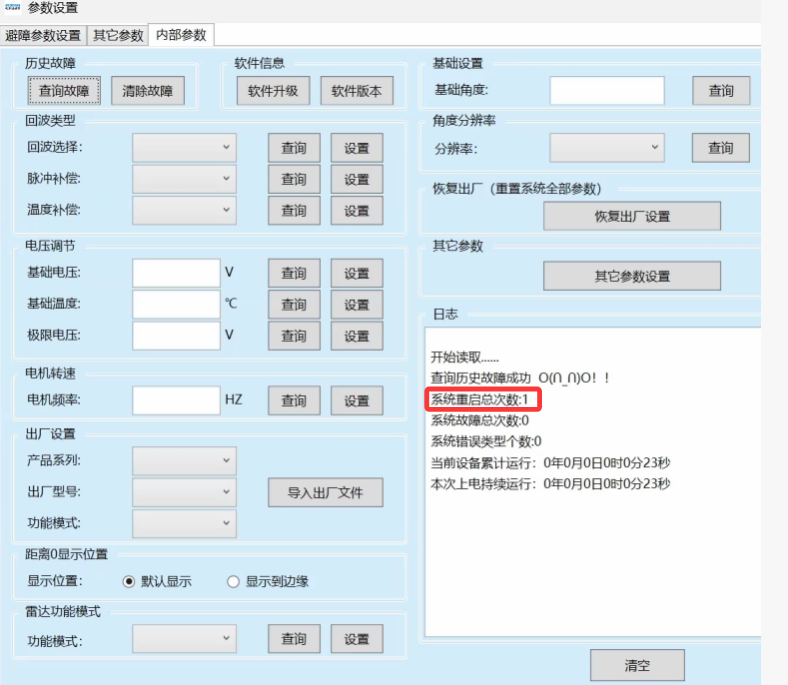
17. Alert: Abnormal Radar Reboot Count
Under normal operation, the radar does not log reboots. Reboot counts are only incremented after an abnormal power loss followed by power restoration.
This alert likely indicates a loose or unstable power connection.
Recommended actions:
Clear historical fault codes,
Power the radar using a stable, regulated power supply,
Monitor continuous operation over time to confirm whether reboot events persist.
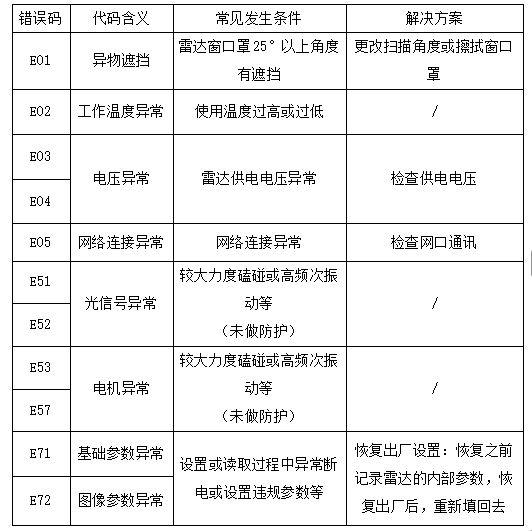
18. What does the E1 error code indicate?
The E1 error is triggered when:
The radar’s window cover is obstructed at an angle exceeding 25°, or
The distance between the radar and the cart (or nearby object) is less than 5 cm.
Resolution:
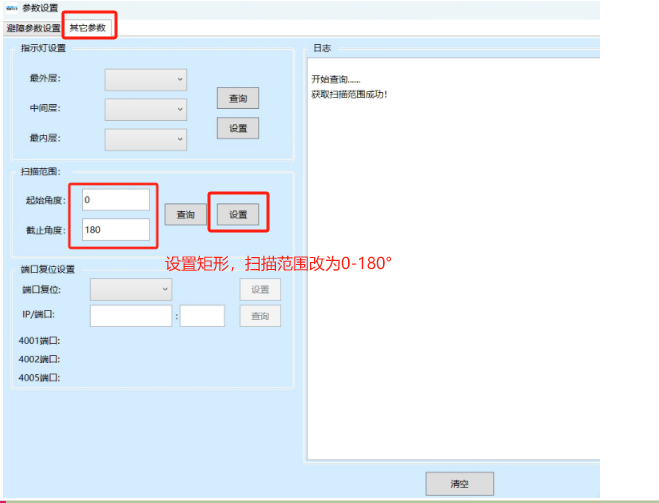
Navigate to Parameter Settings → Other Parameters and adjust the relevant angle setting.
19. Other Error Codes and Their Meanings?
(Note: The original text only provides the heading without specific error codes or explanations. Please refer to the product manual or contact technical support for a complete list of error codes and their definitions.)



 English
 简体中文
简体中文 Indonesian


